

Import VCF to iPhone
How to import VCF file into iPhone 7?
I’ve been having difficulties getting all my contacts onto my iPhone. I have all of my .VCF contact files on my computer, and in iTunes I made it so that it used Windows Contacts as the Sync Folder. Well I have all my .VCF contact files in Windows Contacts but it isn’t putting them onto my iPhone when I Sync.
VCF, also known as vCard file, is similar to a business card, usually containing a contacts’ phone number, company, job title, email, address, and other contact information. If you receive some vCard files on the computer and need to import them to iPhone. Whatever you want to import Android vcf to iPhone or transfer a large .vcf to your iPhone, there’s a simple way that enables you to import multiple VCF files to iPhone, just with a few clicks.

In this article, I’ll introduce you two ways to import Vcard contacts to iPhone. One way is to directly transfer VCF files to iPhone, such as iPhone 5, iPhone 4S/4, even if with multiple vCard files; Another way is to import vCard into mail and then sync the contacts to iPhone with iTunes.
How to copy contacts to iPhone from VCF file?
Solution 1: Import VCF file into iPhone with Phone Transfer
iOS Transfer is third-party software that can directly transfer vCard files to iPhone without iTunes and email account. That’s the easiest way for importing VCF contacts to iPhone.
Download its free trial and operate as the below steps.
Step 1. Connect iPhone to and run VCF Contacts Transfer
Run this software on your computer after downloading and installing it. Select “Phone Manager” function from the toolkits.

Then connect your iPhone with computer via a USB cable. The program will detect it automatically.
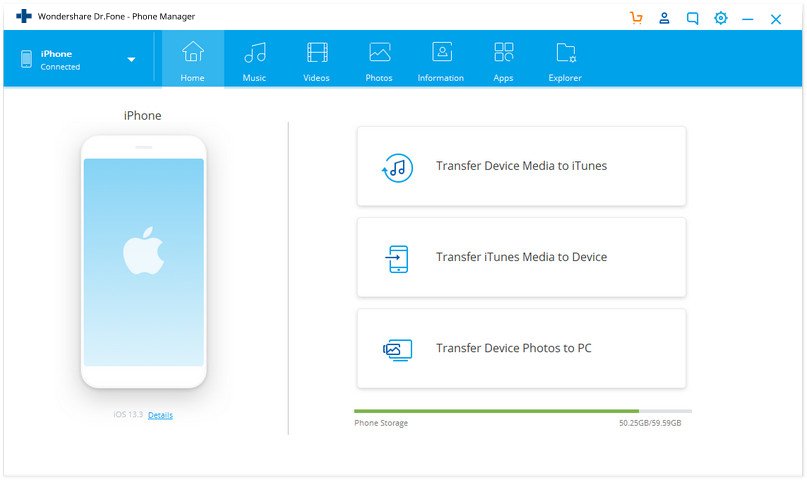
At the top of the main interface, click on Information tab, this will bring up the Contact & SMS management window.
Step 2. Import vCard to iPhone
Then click on Contacts from the left category. To copy contacts to iPhone from VCF file, you can also click Import > from vCard File. When the file browser window pops up, select the vCard file to start importing.

Note: This iOS Transfer is fully compatible with all iPhone models including the latest iPhone X, iPhone 8 Plus, iPhone 8, iPhone 7 Plus, iPhone 7, etc.
It takes you about 1 minute to move vCard files to your iPhone. Then, your .vcf contacts will be imported to your iPhone successfully. It’s really easily and conveniently. For people who have multiple Vcards to import to iPhone, this way is especially easy and fast.
Solution 2: Transfer Vcard contacts to iPhone with iTunes:
To import a vCard contact file to your iPhone, you’ll first need to import the VCF into Gmail, Windows Live Mail or Outlook. Then you can sync the contacts to your iPhone using iTunes.
First, import Vcard to Gmail, Windows Live Mail or Outlook
- Import VCF to Gmail: Sign in your Gmail account. Click ‘Contacts’, then select ‘More’. Click ‘Import’, then select the vCard file and import.
- Import VCF to Windows Live Mail: Launch Windows Live Mail and sign in to your account. Click ‘Import’ then select ‘VCF’. Click ‘Import’.
- Import VCF to Outlook: Log in to Outlook. Click ‘File’, then select ‘Open’. Select ‘Import From Another Program or File’. Select ‘vCard’. Open the vCard file.
Then,. Sync vCard contacts to iPhone
- Connect your iPhone to your computer with the device’s USB cable. Launch iTunes.
- Click on the iPhone’s listing in the Devices section. Click ‘Info’.
- Check the box next to ‘Sync Contacts’. Select the service, either Google, Windows Live Mail, or Outlook.
- Click ‘Apply’, then click ‘Sync’. The program will initiate a sync and your VCF file will be copied to the iPhone.

Only 6 contacts are allowed with the trial to transfer. The door hits much your nose?